
在 iOS 与 Android 之间共享更多逻辑
本教程使用 IntelliJ IDEA,但您也可以在 Android Studio 中按照步骤操作——这两款 IDE 共享相同的核心功能和 Kotlin Multiplatform 支持。
这是使用共享逻辑和原生 UI 创建 Kotlin Multiplatform 应用教程的第四部分。在继续之前,请确保您已完成之前的步骤。


 共享更多逻辑
 完成您的项目
既然您已经使用外部依赖项实现了通用逻辑,现在可以开始添加更复杂的逻辑了。网络请求和数据序列化是使用 Kotlin Multiplatform 共享代码的最热门用例。了解如何在您的第一个应用中实现这些功能,以便在完成此入门之旅后,可以在未来的项目中使用它们。
更新后的应用将通过互联网从 LaunchLibrary 2 API 获取数据,并显示 SpaceX 火箭最后一次成功发射的日期。
您可以在我们的 GitHub 仓库的两个分支中找到项目的最终状态,分别包含不同的协程解决方案:
添加更多依赖项
您需要在项目中添加以下多平台库:
kotlinx.coroutines:用于同时进行多项操作的协程。kotlinx.serialization:将 SpaceX API 的 JSON 响应反序列化为用于处理网络操作的实体类对象。- Ktor:一个用于通过 HTTP 发送和检索数据的框架。
更新 Gradle 版本编目
在 gradle/libs.versions.toml 中添加以下条目,然后同步 Gradle 文件,使这些引用在构建配置代码中可用:
[versions]
coroutinesVersion = "1.10.2"
ktorVersion = "3.3.3"
# 编目中应该已经设置了 Kotlin 版本
kotlin = "2.3.0"

[libraries]
kotlinx-coroutines = { module = "org.jetbrains.kotlinx:kotlinx-coroutines-core", version.ref = "coroutinesVersion" }
ktor-client-core = { module = "io.ktor:ktor-client-core", version.ref = "ktorVersion" }
ktor-client-content-negotiation = { module = "io.ktor:ktor-client-content-negotiation", version.ref = "ktorVersion" }
ktor-serialization-kotlinx-json = { module = "io.ktor:ktor-serialization-kotlinx-json", version.ref = "ktorVersion" }
ktor-client-darwin = { module = "io.ktor:ktor-client-darwin", version.ref = "kotlin" }
ktor-client-android = { module = "io.ktor:ktor-client-android", version.ref = "kotlin" }

[plugins]
kotlinSerialization = { id = "org.jetbrains.kotlin.plugin.serialization", version.ref = "kotlin" }
将依赖项添加到对应的源集
在 sharedLogic/build.gradle.kts 文件中将库引用添加到对应的源集:
plugins {
    // ...
    alias(libs.plugins.kotlinSerialization)
}

kotlin {
    sourceSets {
        commonMain.dependencies {
            // ...
            // Kotlin Multiplatform Gradle 插件会
            // 自动添加平台特定的协程构件
            implementation(libs.kotlinx.coroutines.core)
            // Ktor 核心依赖项
            implementation(libs.ktor.client.core)
            // 允许 Ktor 使用特定格式序列化的依赖项
            implementation(libs.ktor.client.content.negotiation)
            implementation(libs.ktor.serialization.kotlinx.json)
        }
        androidMain.dependencies {
            // 为 Ktor 提供 Android 引擎
            implementation(libs.ktor.client.android)
        }
        iosMain.dependencies {
            // 为 Ktor 提供 Darwin 引擎
            implementation(libs.ktor.client.darwin)
        }
    }
}
点击 Sync Gradle Changes 按钮同步 Gradle 文件。
设置 API 请求
您将使用 Launch Library API 获取数据,特别是从 /2.3.0/launches 端点获取所有发射的列表。
创建数据模型
在 sharedLogic/src/commonMain/.../greetingkmp 目录中,创建一个新的 RocketLaunch.kt 文件,并添加一个存储 SpaceX API 数据的类:
import kotlinx.serialization.SerialName
import kotlinx.serialization.Serializable

@Serializable
data class RocketLaunch(
    @SerialName("id")
    val id: String,
    @SerialName("name")
    val missionName: String,
    @SerialName("net")
    val launchDateUTC: String,
    @SerialName("status")
    val status: LaunchStatus,
)

@Serializable
data class LaunchStatus(
    @SerialName("id")
    val id: Int,
    @SerialName("name")
    val name: String,
)

@Serializable
data class LaunchListResponse(
    @SerialName("results")
    val results: List<RocketLaunch>,
)RocketLaunch类标记有@Serializable注解,以便kotlinx.serialization插件可以自动为其生成默认序列化程序。@SerialName注解允许您重新定义字段名称,从而可以使用更具可读性的名称在数据类中声明属性。
连接 HTTP 客户端
在
sharedLogic/src/commonMain/.../greetingkmp目录中,创建一个新的RocketComponent类。添加
httpClient属性,通过 HTTP GET 请求检索火箭发射信息:kotlinimport io.ktor.client.HttpClient import io.ktor.client.plugins.contentnegotiation.ContentNegotiation import io.ktor.serialization.kotlinx.json.json import kotlinx.serialization.json.Json class RocketComponent { private val httpClient = HttpClient { install(ContentNegotiation) { json(Json { prettyPrint = true isLenient = true ignoreUnknownKeys = true }) } } }ContentNegotiationKtor 插件和 JSON 序列化程序会反序列化 GET 请求的结果。- 此处的 JSON 序列化程序配置为:使用
prettyPrint属性以更具可读性的方式打印 JSON;使用isLenient在读取格式错误的 JSON 时更加灵活;以及使用ignoreUnknownKeys忽略未在火箭发射模型中声明的键。
向
RocketComponent添加getDateOfLastSuccessfulLaunch()挂起函数,它将异步检索有关火箭发射的信息:kotlinimport io.ktor.client.request.get import io.ktor.client.call.body class RocketComponent { // ... private suspend fun getDateOfLastSuccessfulLaunch(): String { val rockets: List<RocketLaunch> = httpClient.get("https://api.spacexdata.com/v4/launches").body() // 暂时用一个存根日期初始化 val date: String = "October 5, 2026" return "$date" } }httpClient.get()也是一个挂起函数,因为它需要通过网络异步检索数据而不阻塞线程。- 挂起函数只能从协程或其他挂起函数中调用。这就是为什么
getDateOfLastSuccessfulLaunch()被标记了suspend关键字的原因。网络请求在 HTTP 客户端的线程池中执行。
在调用 HTTP 请求后,添加在列表中获取最后一次成功发射的调用(发射列表按日期从最早到最新排序):
kotlinclass RocketComponent { // ... private suspend fun getDateOfLastSuccessfulLaunch(): String { val response: LaunchListResponse = httpClient.get("https://lldev.thespacedevs.com/2.3.0/launches/previous/?mode=list&limit=10&format=json").body() val lastSuccessLaunch = response.results.first { it.status.id == 3 } val date: String = "October 5, 2026" return "$date" } }将发射的 UTC 日期和时间转换为您的本地日期,并将结果赋值给
date。然后返回格式化的输出:kotlinimport kotlinx.datetime.TimeZone import kotlinx.datetime.toLocalDateTime import kotlin.time.ExperimentalTime import kotlin.time.Instant class RocketComponent { // ... private suspend fun getDateOfLastSuccessfulLaunch(): String { val response: LaunchListResponse = httpClient.get("https://lldev.thespacedevs.com/2.3.0/launches/previous/?mode=list&limit=10&format=json").body() val lastSuccessLaunch = response.results.first { it.status.id == 3 } val date = Instant.parse(lastSuccessLaunch.launchDateUTC) .toLocalDateTime(TimeZone.currentSystemDefault()) return "${date.month} ${date.day}, ${date.year}" } }日期将以 "MMMM DD, YYYY" 格式显示,例如 "OCTOBER 5, 2022"。
在同一个类中,添加另一个挂起函数
launchPhrase(),它将使用getDateOfLastSuccessfulLaunch()函数创建一条消息:kotlinclass RocketComponent { // ... suspend fun launchPhrase(): String = try { "The last successful launch was on ${getDateOfLastSuccessfulLaunch()} 🚀" } catch (e: Exception) { println("Exception during getting the date of the last successful launch $e") "Error occurred" } }
创建协程流
如果您需要产生一系列值,可以使用流 (Flow),而不是简单地调用挂起函数。流可以在产生值时发出一系列值,而不是像挂起函数那样返回单个值。
打开
shared/src/commonMain/kotlin目录中的Greeting.kt文件。向
Greeting类添加rocketComponent属性。该属性将存储包含最后一次成功发射日期的消息:kotlinclass Greeting { private val rocketComponent = RocketComponent() //... }更改
greet()函数以返回Flow:kotlinimport kotlinx.coroutines.delay import kotlinx.coroutines.flow.Flow import kotlinx.coroutines.flow.flow import kotlin.time.Duration.Companion.seconds class Greeting { // ... fun greet(): Flow<String> = flow { emit(if (Random.nextBoolean()) "Hi!" else "Hello!") delay(1.seconds) emit("Guess what this is! > ${platform.name.reversed()}") delay(1.seconds) emit(daysPhrase()) emit(rocketComponent.launchPhrase()) } }- 此处使用
flow()构建器函数创建Flow,该函数包装了所有语句。 - 该
Flow每隔一秒发出一个字符串。最后一个元素仅在网络响应返回后发出,因此具体的延迟取决于您的网络情况。
- 此处使用
您已经通过将 greet() 函数的返回值类型更改为 Flow 更新了 shared 模块的 API。现在您需要更新项目的原生部分,以便它们可以正确处理调用 greet() 函数的结果。
更新原生 Android UI
由于 shared 模块和 Android 应用都是用 Kotlin 编写的,因此在 Android 中使用共享代码非常简单。
引入 ViewModel
ViewModel 是 Android 开发中一种热门的模式,有助于管理数据和其他应在 Android activity 生命周期中保持持久的应用组件。现在应用变得越来越复杂,是时候在我们的应用中也引入 ViewModel 了。它将存储从 SpaceX API 接收的数据并将其提供给 UI。
在 Android 平台代码中创建 ViewModel 类:
在
sharedUI/src/commonMain/.../greetingkmp目录中,创建一个新的MainViewModelKotlin 类:kotlinimport androidx.lifecycle.ViewModel class MainViewModel : ViewModel() { // ... }该类扩展了 Android 的
ViewModel类,以符合平台对生命周期和配置更改的预期。创建 StateFlow 类型的
greetingList值及其支持属性:kotlinimport kotlinx.coroutines.flow.MutableStateFlow import kotlinx.coroutines.flow.StateFlow class MainViewModel : ViewModel() { private val _greetingList = MutableStateFlow<List<String>>(listOf()) val greetingList: StateFlow<List<String>> get() = _greetingList }- 此处的
StateFlow扩展了Flow接口,但具有单个值或状态。 - 私有支持属性
_greetingList确保只有该类的客户端可以访问只读的greetingList属性。
- 此处的
在 ViewModel 的
init函数中,收集来自Greeting().greet()流的所有字符串:kotlinimport androidx.lifecycle.viewModelScope import kotlinx.coroutines.launch class MainViewModel : ViewModel() { private val _greetingList = MutableStateFlow<List<String>>(listOf()) val greetingList: StateFlow<List<String>> get() = _greetingList init { viewModelScope.launch { Greeting().greet().collect { phrase -> //... } } } }由于
Flow.collect()函数是挂起的,因此在 ViewModel 的作用域内使用launch协程。这意味着启动的协程将仅在 ViewModel 生命周期的正确阶段运行。在
collect尾随 lambda 内部,使用update()函数将收集到的phrase追加到_greetingList中的短语列表:kotlinimport kotlinx.coroutines.flow.update class MainViewModel : ViewModel() { //... init { viewModelScope.launch { Greeting().greet().collect { phrase -> _greetingList.update { list -> list + phrase } } } } }
使用 ViewModel 的流
在
sharedUI/src/commonMain/.../greetingkmp中,打开App.kt文件并进行更新,替换之前的实现以使用新实现的 ViewModel:kotlinimport androidx.lifecycle.compose.collectAsStateWithLifecycle import androidx.compose.runtime.getValue import androidx.lifecycle.viewmodel.compose.viewModel @Composable @Preview fun App(mainViewModel: MainViewModel = viewModel()) { MaterialTheme { val greetings by mainViewModel.greetingList.collectAsStateWithLifecycle() Column( modifier = Modifier .safeContentPadding() .fillMaxSize(), verticalArrangement = Arrangement.spacedBy(8.dp), ) { greetings.forEach { greeting -> Text(greeting) HorizontalDivider() } } } }collectAsStateWithLifecycle()函数在greetingList上调用,以从 ViewModel 的流中收集值,并以生命周期感知的方式将其表示为组合状态。- 当创建新的流时,组合状态将发生变化并显示一个可滚动的
Column,其中欢迎短语垂直排列并由分隔线分隔。
添加互联网访问权限
要访问互联网,Android 应用需要适当的权限。由于所有网络请求都是从 shared 模块发出的,因此在其清单中添加互联网访问权限是有意义的。
使用访问权限更新您的 androidApp/src/main/AndroidManifest.xml 文件:
<?xml version="1.0" encoding="utf-8"?>
<manifest xmlns:android="http://schemas.android.com/apk/res/android">
    <uses-permission android:name="android.permission.INTERNET"/>
    ...
</manifest>
运行应用
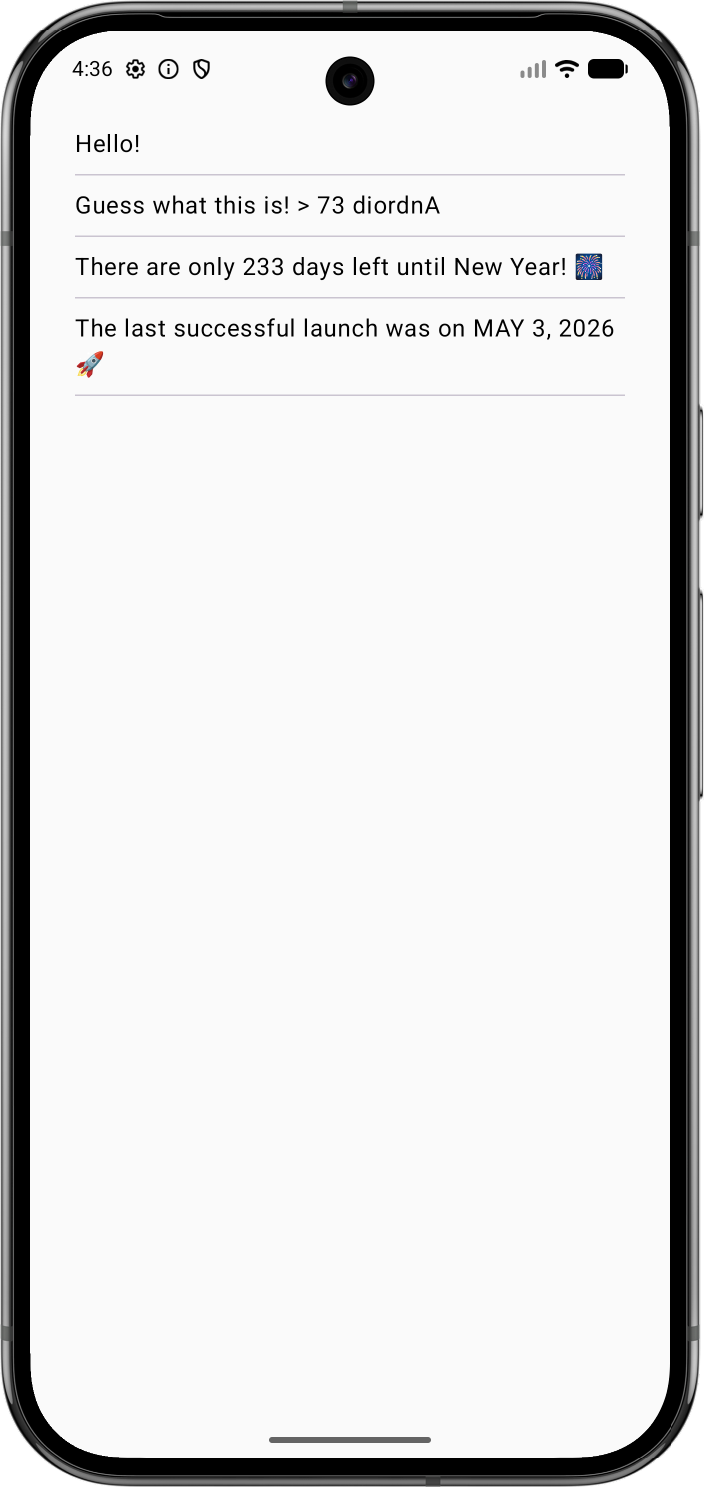
要查看最终结果,请重新运行您的 androidApp 运行配置:
更新原生 iOS UI
对于项目的 iOS 部分,您将利用 Model–view–viewmodel 模式(就像您在 Android 应用中所做的那样)将 UI 连接到 sharedLogic 模块。
该模块已经通过 import SharedLogic 声明导入到 ContentView.swift 文件中。
引入 ViewModel
在 iosApp/ContentView.swift 中,为 ContentView 创建一个 ViewModel 类,它将为其准备和管理数据。在 task() 调用中调用 startObserving() 函数以支持并发:
import SwiftUI
import SharedLogic

struct ContentView: View {
    @ObservedObject private(set) var viewModel: ViewModel

    var body: some View {
        ListView(phrases: viewModel.greetings)
            .task { await self.viewModel.startObserving() }
    }
}

extension ContentView {
    @MainActor
    class ViewModel: ObservableObject {
        @Published var greetings: Array<String> = []

        func startObserving() {
            // ...
        }
    }
}

struct ListView: View {
    let phrases: Array<String>

    var body: some View {
        List(phrases, id: \.self) {
            Text($0)
        }
    }
}ViewModel被声明为ContentView的扩展,因为它们紧密相连。ViewModel具有一个greetings属性,它是一个String短语数组。
SwiftUI 将 ViewModel (ContentView.ViewModel) 与视图 (ContentView) 连接起来:
ContentView.ViewModel被声明为ObservableObject。ContentView中viewModel属性的@ObservedObject包装器将视图订阅到 ViewModel。- ViewModel 的
greetings属性使用@Published包装器。它允许 SwiftUI 在此属性更改时自动更新视图。
现在您需要实现 startObserving() 函数来消费流。
选择一个在 iOS 中消费流的库
在本教程中,您可以使用 SKIE 或 KMP-NativeCoroutines 库来帮助您在 iOS 中处理流。两者都是开源解决方案,支持流的取消和泛型,而 Kotlin/Native 编译器目前默认尚未提供这些功能:
- KMP-NativeCoroutines 库通过生成必要的包装器,帮助您从 iOS 消费挂起函数和流。KMP-NativeCoroutines 支持 Swift 的
async/await功能以及 Combine 和 RxSwift。使用 KMP-NativeCoroutines 需要在 iOS 项目中添加 SwiftPM 或 CocoaPod 依赖项。 - SKIE 库增强了由 Kotlin 编译器生成的 Objective-C API:SKIE 将流转换为等效的 Swift
AsyncSequence。SKIE 直接支持 Swift 的async/await,没有线程限制,并具有自动双向取消功能(Combine 和 RxSwift 需要适配器)。SKIE 提供了其他功能来从 Kotlin 生成 Swift 友好的 API,包括将各种 Kotlin 类型桥接到 Swift 等效类型。它也不需要在 iOS 项目中添加额外的依赖项。
选项 1. 配置 KMP-NativeCoroutines
我们建议使用该库的最新版本。请查看 KMP-NativeCoroutines 仓库以了解是否有更新版本的插件可用,以及它是否与您的 Kotlin 版本兼容。
将 KMP-NativeCoroutines 版本和插件引用添加到 Gradle 版本编目中:
toml[versions] kmpNativeCoroutines = "1.0.0-ALPHA-45" [plugins] kmpNativeCoroutines = { id = "com.rickclephas.kmp.nativecoroutines", version.ref = "kmpNativeCoroutines" }在项目的根目录
build.gradle.kts文件(不是shared/build.gradle.kts文件)中,将 KMP-NativeCoroutines 插件添加到plugins {}块中:kotlinplugins { // ... alias(libs.plugins.kmpNativeCoroutines) apply false }在
sharedLogic/build.gradle.kts文件中,将 KMP-NativeCoroutines 插件添加到plugins {}块中:kotlinplugins { // ... alias(libs.plugins.kmpNativeCoroutines) }在同一个
sharedLogic/build.gradle.kts文件中,启用实验性的@ObjCName注解:kotlinkotlin { // ... sourceSets{ all { languageSettings { optIn("kotlin.experimental.ExperimentalObjCName") } } // ... } }点击 Sync Gradle Changes 按钮同步 Gradle 文件。
使用 KMP-NativeCoroutines 标记流
打开
sharedLogic/src/commonMain/kotlin目录中的Greeting.kt文件。将
@NativeCoroutines注解添加到greet()函数。这将确保插件生成正确的代码以支持在 iOS 上进行正确的流处理:kotlinimport com.rickclephas.kmp.nativecoroutines.NativeCoroutines class Greeting { // ... @NativeCoroutines fun greet(): Flow<String> = flow { // ... } }
在 Xcode 中使用 SwiftPM 导入库
安装使用 async/await 机制所需的 KMP-NativeCoroutines Swift 包的部分。
转到 File | Open Project in Xcode。
在 Xcode 中,右键点击左侧菜单中的
iosApp项目,然后选择 Add Package Dependencies。在搜索栏中输入包名称:
nonehttps://github.com/rickclephas/KMP-NativeCoroutines.git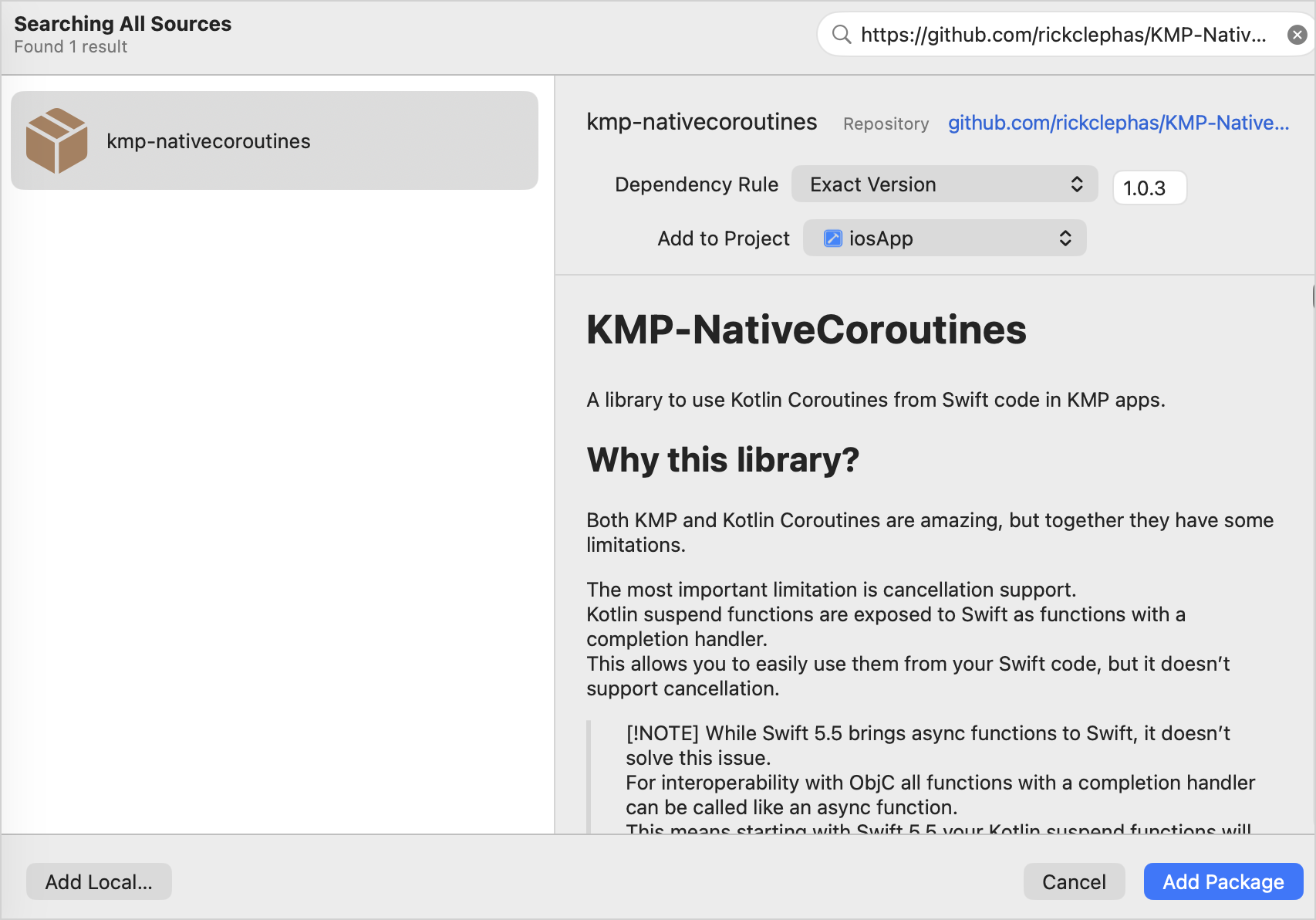
在 Dependency Rule 下拉列表中,选择 Exact Version 并在相邻字段中输入
1.0.0-ALPHA-45版本。点击 Add Package 按钮。Xcode 将从 GitHub 获取该包并打开另一个窗口以选择包产品。
如图所示,将 "KMPNativeCoroutinesAsync" 和 "KMPNativeCoroutinesCore" 添加到您的应用中,然后点击 Add Package:
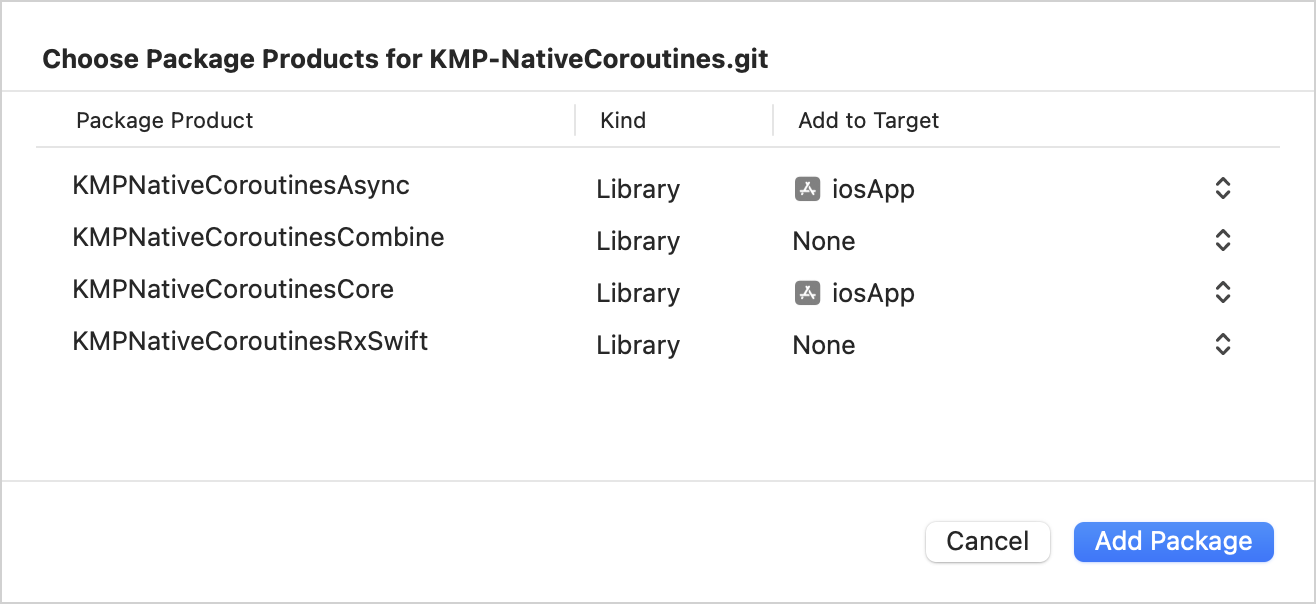
返回 IntelliJ IDEA 并选择 Tools | Swift Package Manager | Resolve Dependencies 菜单项。这将创建一个
Package.resolved锁定文件,该文件由 Kotlin 构建使用,并可以提交到仓库以保持 Swift 包的版本一致。
使用 KMP-NativeCoroutines 库消费流
在
iosApp/ContentView.swift中,更新startObserving()函数,使用 KMP-NativeCoroutine 为Greeting().greet()函数提供的asyncSequence()函数来消费流:Swiftfunc startObserving() async { do { let sequence = asyncSequence(for: Greeting().greet()) for try await phrase in sequence { self.greetings.append(phrase) } } catch { print("Failed with error: \(error)") } }此处使用循环和
await机制来遍历流,并在流每次发出值时更新greetings属性。确保
ViewModel标记有@MainActor注解。该注解确保ViewModel内的所有异步操作都在主线程上运行,以符合 Kotlin/Native 的要求:Swift// ... import KMPNativeCoroutinesAsync import KMPNativeCoroutinesCore // ... extension ContentView { @MainActor class ViewModel: ObservableObject { @Published var greetings: Array<String> = [] func startObserving() async { do { let sequence = asyncSequence(for: Greeting().greet()) for try await phrase in sequence { self.greetings.append(phrase) } } catch { print("Failed with error: \(error)") } } } }
选项 2. 配置 SKIE
要设置该库,请将 SKIE 版本和插件引用添加到您的 Gradle 版本编目中:
[versions]
skie = "0.10.6"

[plugins]
skie = { id = "co.touchlab.skie", version.ref = "skie" }
SKIE 可能不支持最新的 Kotlin 版本。如果您的 Kotlin 版本太新,Gradle 同步期间会报告此情况,并列出您可以安全降级到的版本。
然后将其添加到 sharedLogic/build.gradle.kts 文件中的插件列表中,并点击 Sync Gradle Changes 按钮:
plugins {
    //...
    alias(libs.plugins.skie)
}
使用 SKIE 消费流
您将使用循环和 await 机制来遍历 Greeting().greet() 流,并在流每次发出值时更新 greetings 属性。
在使用 SKIE 时,IntelliJ IDEA 和 Android Studio 可能会错误地报告调用 Kotlin 代码时的 Swift 错误。这是该库的一个已知问题,不会影响应用的构建和运行。
确保 ViewModel 标记有 @MainActor 注解。该注解确保 ViewModel 内的所有异步操作都在主线程上运行,以符合 Kotlin/Native 的要求:
// ...
extension ContentView {
    @MainActor
    class ViewModel: ObservableObject {
        @Published var greetings: [String] = []

        func startObserving() async {
            for await phrase in Greeting().greet() {
                self.greetings.append(phrase)
            }
        }
    }
}
消费 ViewModel 并运行 iOS 应用
在 iosApp/iOSApp.swift 中,更新应用的入口点:
@main
struct iOSApp: App {
   var body: some Scene {
       WindowGroup {
           ContentView(viewModel: ContentView.ViewModel())
       }
   }
}
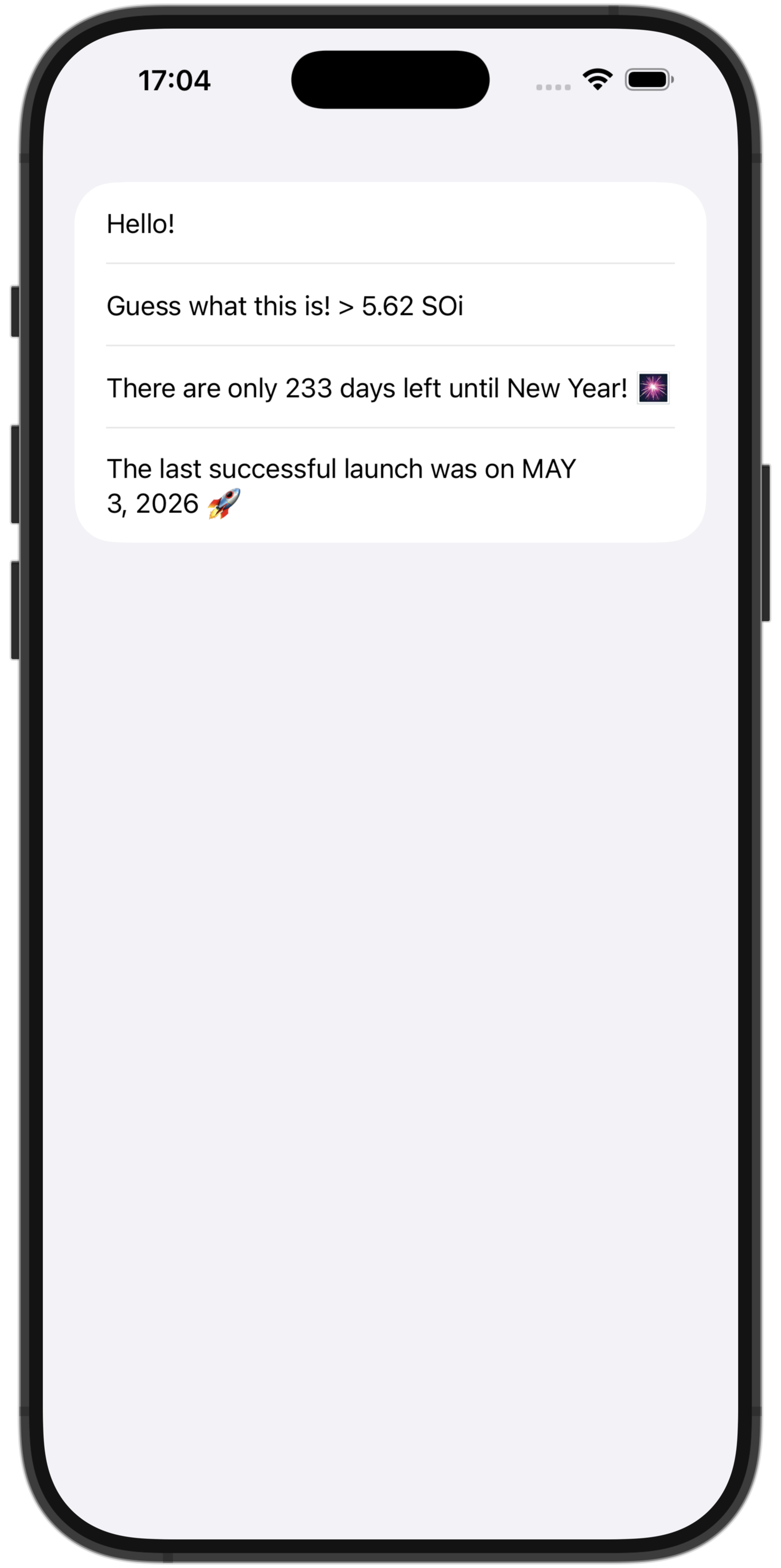
从 IntelliJ IDEA 运行 iosApp 配置,以确保应用逻辑已同步:
您可以在我们的 GitHub 仓库的两个分支中找到项目的最终状态,分别包含不同的协程解决方案:
下一步
在教程的最后一部分,您将完成您的项目并了解接下来的步骤。
另请参阅
- 探索组合挂起函数的各种方法。
- 详细了解与 Objective-C 框架和库的互操作性。
- 完成关于网络和数据存储的教程。
获取帮助
- Kotlin Slack。获取邀请并加入 #multiplatform 频道。
- Kotlin 问题跟踪器。报告新问题。